![logo_green background.png]](https://support.onyo.de/hs-fs/hubfs/logo_green%20background.png?height=40&name=logo_green%20background.png)
Single Sign-On (SSO) lets your employees sign in to onyo with their existing company login – e.g. from Microsoft Entra, Okta, Keycloak or Google Workspace – instead of a separate onyo password.
Benefits of SSO:
- Enhanced IT security through centralized authentication
- Easy access without extra passwords
- Improved user experience
You can set up SSO yourself in onyo – no activation by onyo is needed.
Prerequisites
- In onyo you need manager/admin rights to edit the settings.
- At your identity provider you need the rights to register an OAuth2 / OpenID Connect application (e.g. as an administrator of your Microsoft 365 tenant).
- SSO is a paid add-on. You can see the current price directly in the settings.
How to set up SSO
You'll find the configuration in onyo under Settings → General → Single Sign-On.
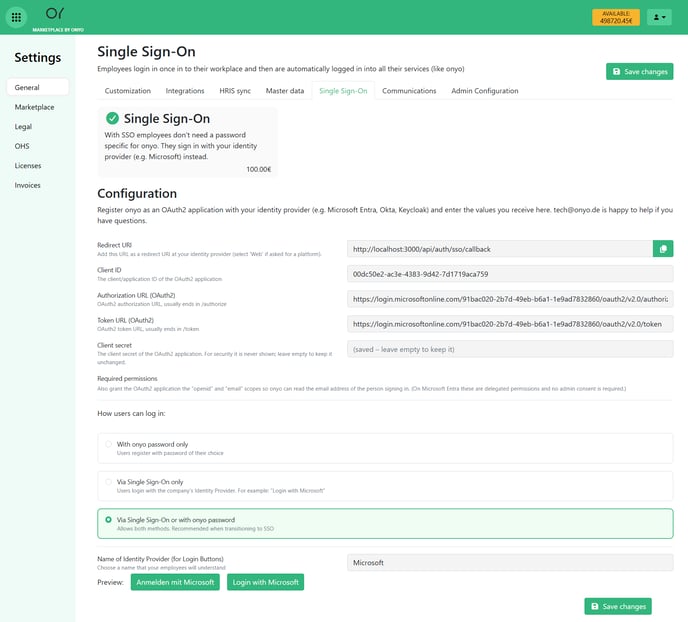
The flow is the same for every provider:
- Register onyo as an OAuth2 / OpenID Connect application with your identity provider.
- Add the redirect URI that onyo shows above (copy button to the right of the field). If you are asked for a platform, select Web.
- Enter the values you receive from the provider into onyo: Client ID, Authorization URL (OAuth2), Token URL (OAuth2) and Client secret.
- Choose the login mode and the name of the identity provider for the login button, then click "Save changes".
Microsoft Entra? For the by far most common case there is a detailed step-by-step guide with screenshots: Single Sign-On via Entra.
But any identity provider that supports OAuth2 with OpenID Connect works (e.g. Okta, Keycloak, Google Workspace). The field names differ slightly per provider but mean the same thing: onyo uses the OAuth2 authorization code flow and reads the email address of the person signing in via OpenID Connect.
Required permissions
The OAuth2 application needs the two permissions (scopes) openid and email. They let onyo read the email address of the person signing in and match it to their onyo account. (On Microsoft Entra these are delegated permissions; admin consent is not required.)
Important: the email address at the identity provider must match the email address stored for that person in onyo.
What you can configure
Login mode – how your employees can sign in:
- With onyo password only – classic login with a self-chosen password (SSO is off).
- Via Single Sign-On only – sign in exclusively through your identity provider.
- Via Single Sign-On or with onyo password – both methods are allowed. Recommended for testing when transitioning to SSO, so nobody gets locked out.
Name of the identity provider – sets the label of the login button (e.g. "Microsoft" → "Login with Microsoft"). The preview shows right away what the button will look like.
If you have any questions or problems, feel free to reach out to us via the contact form at any time.